Leaderboards
Adding leaderboards to your game is perfect to allow players to compete. It's also a way to increase the retention of players, displaying the scores of the best ones.
GDevelop provides a built-in solution to create, manage and use leaderboards in your game. These leaderboards can be created for any game, are fast and efficient and can scale from small games to millions of players as they are based on our adaptable, elastic infrastructure.
Note
You can either submit scores from anonymous players (with a nickname) or for connected players. We recommend sending scores for connected players, as this will allow them later to benefit from new features (like achievements).
Manage leaderboards
In the games dashboard, you can access all the leaderboards linked to your game. To find more details on how to manage and configure leaderboards, please refer to leaderboard administration.
You can also access this administration interface from within the actions and conditions related to leaderboards.
Send a new score to a leaderboard
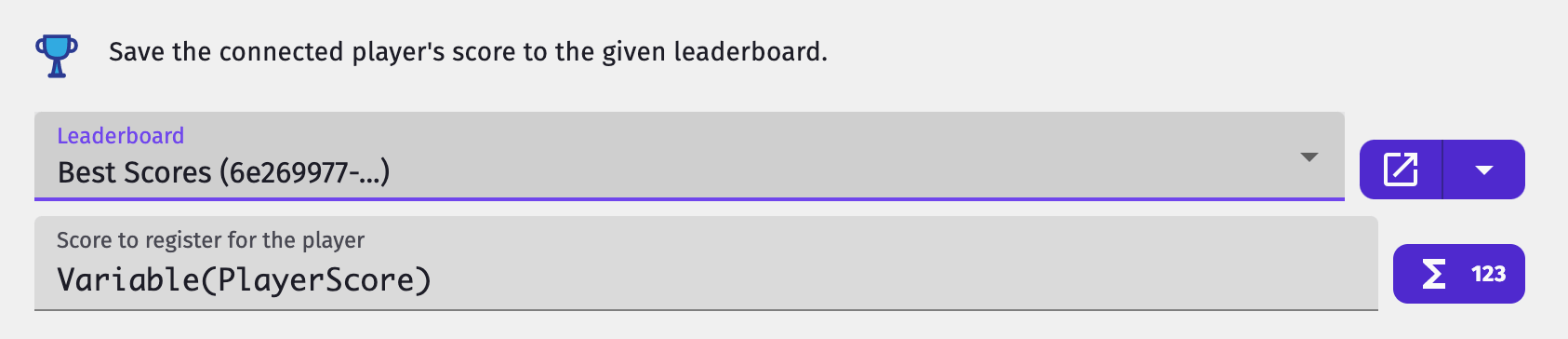
Use the action "Save connected player score" (or "Save player score" if the player is not connected) to submit the score of a player:

- If you haven't created a leaderboard yet, do so in the Leaderboard administration interface.
- Once it is done, you can either select the leaderboard you want to send the score to, or use an expression to define the unique id of the leaderboard (if it is stored in a scene variable for instance).
- Finally, set the score to send. A number field is available for this: you probably want to use a
Variableexpression to read the value of a variable in memory.
Check that the score was correctly saved
You have 3 conditions at your disposal to monitor how the saving is run through.
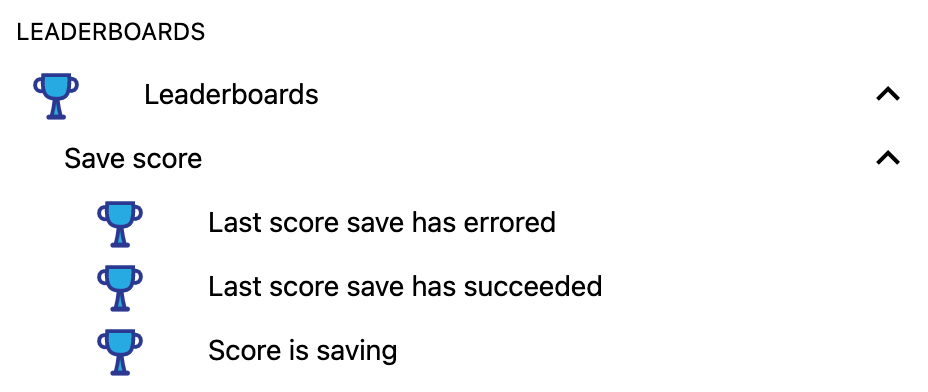
For each of those conditions, you can specify the leaderboard but this is optional. This can prove useful if you try to save the player score in multiple leaderboards at once.
If the save fails, use the expression Leaderboards::LastSaveError(leaderboardId) to retrieve the reason. Common error values include:
| Error | Meaning |
|---|---|
"SAME_AS_PREVIOUS" |
Score was identical to the last submitted score |
"TOO_FAST" |
Score was submitted less than 500ms after the previous one |
"LEADERBOARD_RATE_LIMIT_EXCEEDED" |
More than 6 scores per minute sent to this leaderboard |
"GLOBAL_RATE_LIMIT_EXCEEDED" |
More than 12 scores per minute sent across all leaderboards |
Tip
To avoid rate limit errors, only submit a score at meaningful moments — such as when a level ends or the player dies — rather than continuously during gameplay.
Display a leaderboard
Use the action "Display leaderboard" to load and display a leaderboard on the screen. It will be displayed on top of your game, and the view will have a button to close it in order to come back to your game.
Tip
Leaderboards can be displayed on any platform: Android, iOS, desktop, on the web. They will work everywhere and will adapt to the screen size.

While it's loading, to let the player know that the leaderboard will display soon, you have the choice between 2 options:
- Display the built-in loader (using the option available in the action)
- Use the condition "Leaderboard display is loading" to trigger an action (display a text "Loading" for example)
Either case, if there's an error during the display, it will close automatically. You can also use the 2 conditions "Leaderboard display has errored" and "Leaderboard display has loaded" if you want to add logic around a possible error.
Use the action "Close current leaderboard" to dismiss the leaderboard programmatically — for example, if you want to close it after a timeout or when the player presses a specific key. Use the condition "Closed by player" to detect when the player closed the leaderboard themselves, so you can resume gameplay or navigate to the next scene.
Advanced: pause the scene when the leaderboard is displayed
We recommend that you send back the player to a menu scene or a non gameplay scene after you open the leaderboard.
Tip
In this case, don't forget to activate the option to display the leaderboard loader, so that your players wait until the leaderboard is loaded and are not confused.
In some games, you may want to pause the scene while the leaderboard is displayed. For this, you can use an intermediate scene:
- Suppose you have a scene that is named "Level 1"
- Create a new scene "LeaderboardBackground"
- This scene will run in background when the leaderboard is displayed
- In the events sheet of scene "Level 1", add this event:

- In the events sheet of scene "LeaderboardBackground", add this event to go back to "Level 1" scene:

Advanced: Set the name of the player for anonymous players
For the player to type their name, you can use the Text Input or Text Entry objects and then use the result to set the player name in the entry that will be sent to the leaderboard.
Note
Note that in most cases, it's simpler to just ask your player to log in to your game. Their username will be handled by GDevelop directly.
The player name must respect a few constraints (30 characters-long, allowed characters are letters from the latin alphabet or numbers and the characters -, _ and |).
To help you respect those constraints, the action will apply the expression Leaderboards::FormatPlayerName to the provided player name. Here is a few examples on how this expression can transform the player name:
| Original player name | Formatted | Why |
|---|---|---|
"Dr Neo Cortex-24|7" |
"Dr_Neo_Cortex-24|7" |
White spaces replaced by _ |
"Senna$!" |
"Senna" |
Special characters removed |
"Brûlé" |
"Brule" |
Diacritic marks removed |
"aPlayerNameTh4tIsT00LongToBeSaved" |
"aPlayerNameTh4tIsT00LongToBeSa" |
Name truncated if too long |
"" (empty) |
"Player89456" |
Random name if input is empty (5-digits-long number) |
Reference
All actions, conditions and expressions are listed in the leaderboards reference page.